CyberGate Call Groups for Sequential and Parallel Calling
CyberGate Call Groups configure a single call Destination in your Intercom at once.
Destination points to CyberGate and from there CyberGate takes over
Setup Intercom Call Destinations once — and never touch them again.
Picture this: a Teams user assigned to answer intercom calls changes role or leaves the company. You’ve got 25 intercoms deployed, sourced from 3 different manufacturers. Now you have to update the call Destination on every single device. Three intercom brands means three UIs, three different ways of doing the same task. And the worst part: next month, when someone else changes position, the party starts all over again.
CyberGate Call Groups solves this problem.
One Destination. All the Flexibility.
With CyberGate Call Groups, you configure a single call Destination in your Intercom, just once.
This Destination points to CyberGate, and from there CyberGate takes over: who gets called, in what order, and what happens if nobody answers.
What if someone leaves, changes role, or a new Teams member joins? You update it in CyberGate. One change. One portal, for all 28 supported intercom brands, instantly updated. No logging into intercom device UIs. No vendor‑specific menus. No chance of missing one.
CyberGate Call Groups - Three routing models
Sequential Calling
Parallel Calling
Sequential and Parallel Calling combined
Each model is best explained with an example. In each diagram below, note that the intercom call Destination (‘Entrance_AMS’) is configured once and never changes.
Sequential Calling
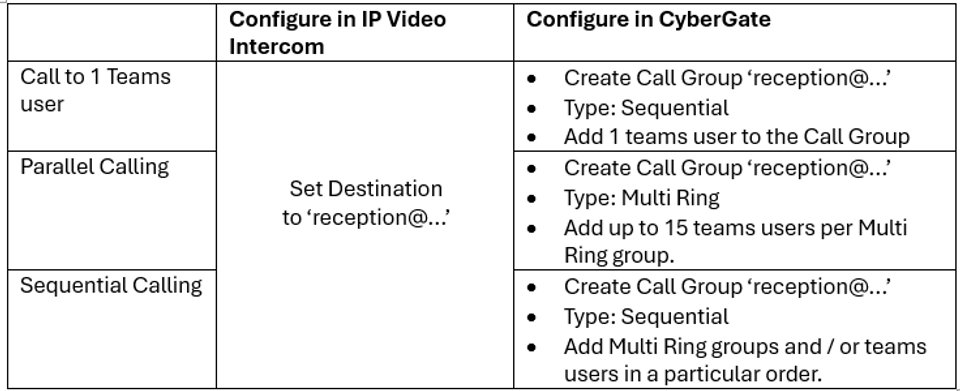
Call multiple Teams users one after another. If the first person is busy or doesn’t answer, CyberGate moves on to the next in line. And the next, until someone picks up.
Parallel Calling (Multi Ring)
Call up to 15 Teams users simultaneously. The first person in the Ring Group who picks up is connected to the visitor.
Combined: Sequential and Parallel Calling
Chain multiple Call Groups in sequence, where each group can be a single user or a Multi Ring group of up to 15 users. First, try the reception team (parallel). If no one answers, try the supervisors team (parallel). If still nobody answers, escalate to security team lead (single).
Why this matters for IT ?
Every intercom vendor has its own UI, menu structure, and terminology. So if you’ve deployed intercom devices from three different manufacturers, your IT team has to learn and remember three UIs and three different configuration methods.
Updating call routing across dozens of intercom devices is a headache. Logging into each device one by one just to change a call Destination is tedious, error‑prone, and a drain on your IT team’s time.
How to Set Up Call Groups
Step 1: Create your Call Group in CyberGate
Login to the CyberGate Management Portal
Navigate to menu Basic Call Group
Create one or more Multi Ring Groups for Parallel Calling.
Finally, create a Call Group of type Sequential and chain ring groups and / or team supers.
Defines after how many seconds CyberGate will move on calling the next Destination in a sequential Call Group, if the previous Destination is busy, or didn’t answer.
Ringing Duration is configurable in the CyberGate Management Portal, per Call Group.
Intercom Maximum Ringing Time
Defines how many seconds the IP Intercom will try calling a Destination.
This is how long your intercom will wait for a connection before giving up. When using sequential calling, make sure this value covers the total ring time. Example: 3 sequential Destinations at 15 seconds each = set your intercom timeout to at least 45 seconds.
Configure once in: IP Video Intercom
Pro tip: Always calculate your intercom timeout as: number of sequential steps x CyberGate ringing duration. If you add more steps later, remember to increase the intercom timeout accordingly.
Summary - How to setup Sequential and Parallel Calling in CyberGate ?
Questions ?
Visit our contact page or reach out to your CyberTwice account manager.
Something is changing at CyberTwice, and today on 22 June 2026 you will see it everywhere. New website, new logos, a sharper identity that better matches the work we do every day. The name stays. CyberTwice is still CyberTwice.
CyberGate now streams ZEPCAM Body-Worn Camera video straight into Microsoft Teams, giving your frontline workforce a live, two-way line to back-office support.
Teams Phone migrations get scoped as a phone-number problem. The peripheral devices nobody scoped — door intercoms, paging, lift phones — are the gas line that breaks the project.